How to Bulk Compress Images Locally
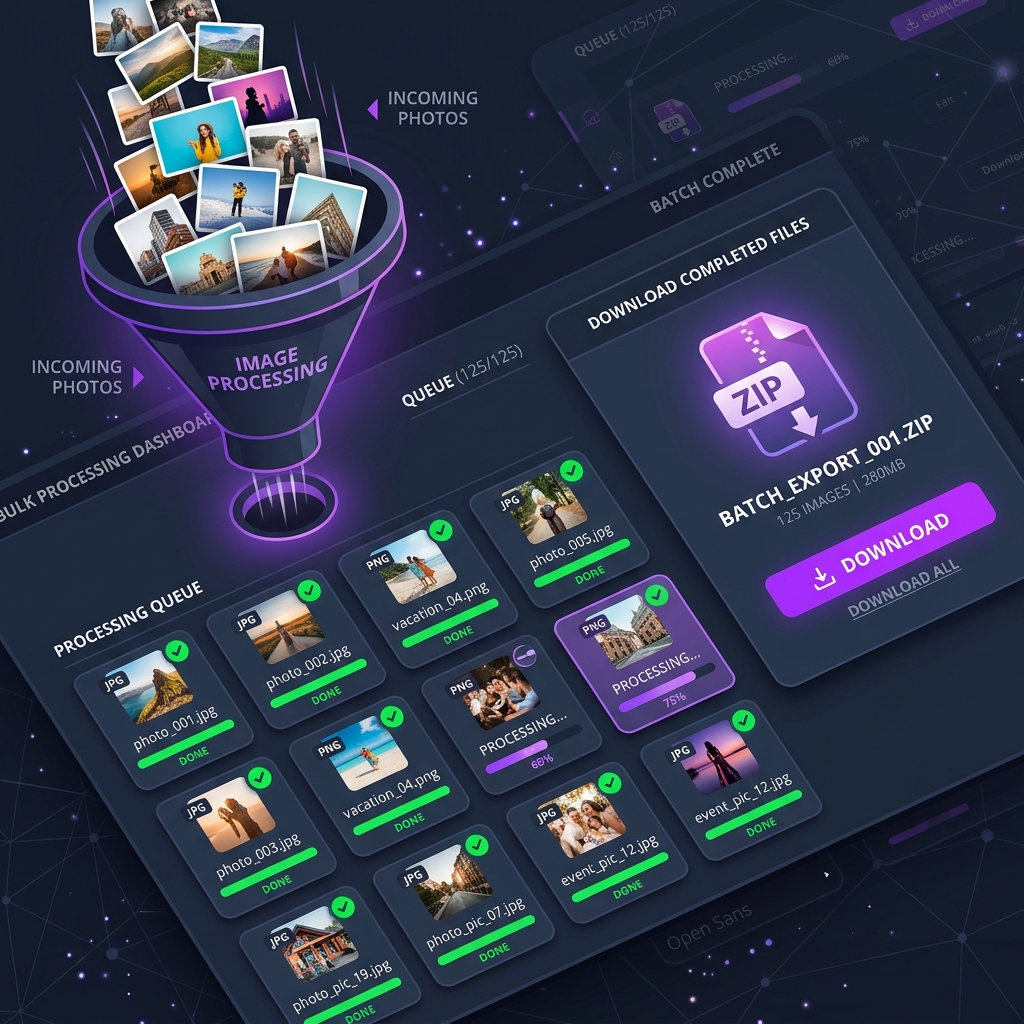
Processing files individually can be extremely slow and tedious. Batch processing resolves this efficiency bottleneck by optimizing dozens or hundreds of image files simultaneously. However, uploading large batches of images to remote servers poses severe security risks and consumes substantial network bandwidth. In this comprehensive guide, we outline how local, browser-based batch compression solves these issues with 100% privacy and lightning speed.
👉 Try our Bulk Image Compressor — 100% free, zero uploads, works inside your browser sandbox.
1. The Security & Bandwidth Limits of Cloud Converters
Traditional cloud-based image tools require you to upload your files to remote servers. When batch compressing hundreds of high-resolution photos, this creates three major problems:
- Privacy Vulnerabilities: Sensitive documents, personal photos, or proprietary design assets are transmitted across public networks to third-party databases.
- Network Congestion: Uploading several gigabytes of raw images takes considerable time and data bandwidth, leading to timeouts or failures.
- Arbitrary File Limits: Cloud providers enforce daily compression quotas, file size caps, or paywalls for bulk processing.
2. How Local Browser-Based Batching Works
Modern web browsers support HTML5 Canvas, Web Workers, and WebAssembly, enabling your device hardware (CPU/GPU) to process image arrays in parallel. Local batch compression works via a 3-stage pipeline:
- Local In-Memory Reading: Files are selected via the HTML5 File API and stored as binary data blobs directly in local RAM sandbox.
- Parallel Canvas Resampling: Multi-threaded Web Workers execute lossy or lossless compression algorithms simultaneously without freezing the main browser thread.
- Instant Zip Packaging: Compressed images are bundled into a single download archive using client-side JSZip algorithms.
3. Step-by-Step: How to Batch Compress Images Online
Follow these simple steps to optimize hundreds of images in seconds:
Step 1: Select or Drag & Drop Images
Open the Bulk Image Compressor and drag all your JPG, PNG, WebP, or HEIC files into the upload box.
Step 2: Configure Quality & Dimensions
Set your target image quality percentage (e.g., 80%) or specify maximum pixel dimensions (e.g., 1920px max width).
Step 3: Download Optimized Package
Click Download All (ZIP) to instantly save your batch of compressed photos with file savings up to 80%.
4. Technical Comparison: Local Batching vs. Cloud Processing
| Feature | TinyImagefy Local Batching | Traditional Cloud Tools |
|---|---|---|
| Data Privacy | 100% In-Browser (Zero Uploads) | Uploaded to Server Storage |
| Batch Processing Speed | Instant (Limited only by local CPU) | Slow (Depends on upload speed) |
| File Quantity Limits | Unlimited Files | 5 to 20 Files per batch max |
| Offline Usage | Works Offline after page loads | Requires Active Internet |
5. Frequently Asked Questions (FAQ)
Can I bulk compress images without losing visual quality?
Yes. By selecting smart lossy compression (75%–85% quality), you reduce byte size by up to 80% while keeping visual differences unnoticeable to the human eye.
Is there a file size limit for local batch compression?
No. Because files are processed locally inside your browser's RAM, there are no artificial file size limits or paywalls.
Which image formats are supported in bulk mode?
You can compress and convert JPG, PNG, WebP, AVIF, and HEIC photos in batch mode.