Best Image Sizes and Formats for Shopify, WooCommerce & E-Commerce
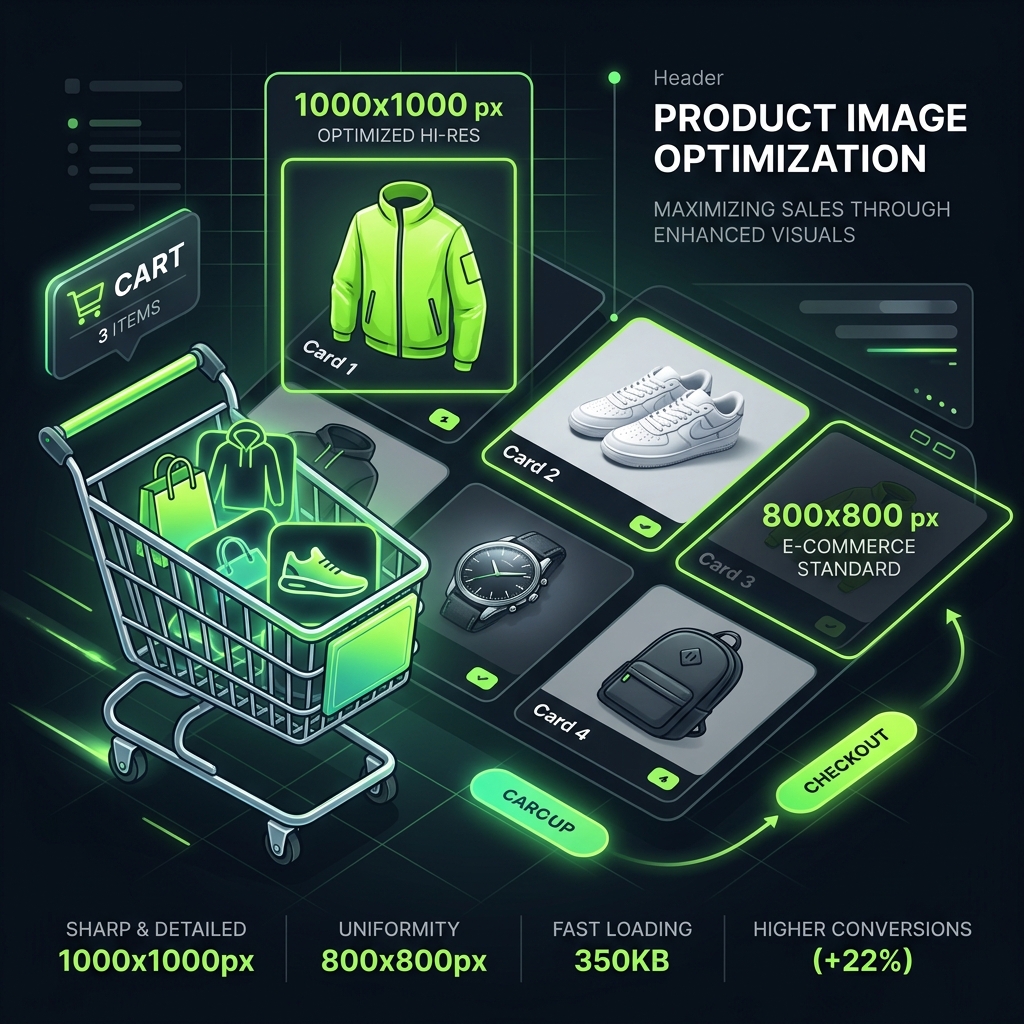
E-commerce performance is directly tied to page loading speeds. Studies show that a 1-second delay in page load time can reduce conversions by up to 7%. Since product galleries are the heaviest elements on shop pages, optimizing product image sizes is critical. This guide lists the best image sizes, formats, and aspect ratios for Shopify and WooCommerce.
1. Recommended Dimensions for Product Images
For a clean and cohesive grid layout, maintain identical aspect ratios (preferably a 1:1 square ratio) across all product catalog uploads. We recommend the following dimensions:
- Product Photos (High Quality Zoom):
2048 x 2048 px. Best for zoom lenses. - Standard Listing Images:
1000 x 1000 pxor800 x 800 px. Balances speed and clarity. - Thumbnail Cards:
150 x 150 pxor200 x 200 px. Used in cart drawer items.
2. Choose the Correct Format: JPEG vs. WebP vs. PNG
Use **WebP** as your default format for its superior size-to-quality ratio. Use **JPEG** only as a fallback, and **PNG** when you need crisp transparent product cutouts (which should be compressed to keep loading times low).
3. Shopify-Specific Product Image Optimization
Shopify recommends product listing images to be exactly 2048 x 2048 pixels. This square format ensures that the automatic zoom functionality inside Shopify product pages works smoothly and allows users to zoom in on fine textures. While Shopify automatically converts images to WebP to reduce transmission weight, uploading pre-scaled and pre-compressed images is a best practice. It reduces the processing load on Shopify's servers and preserves fine details in texture and coloring. Keep file weights under 100KB for product cards to ensure fast page load speeds on mobile networks.
Additionally, Shopify's content delivery network (CDN) caches these images globally, but if the original source file is bloated with metadata or unnecessary color profiles, the CDN still transmits more data than required. By utilizing a local client-side compressor to strip out all EXIF data and convert the color profile to sRGB before uploading, you ensure that every product thumbnail loads instantaneously for your customers, directly boosting mobile conversion rates, improving user retention, and lowering bounce rates on slow network connections.
4. WooCommerce & WordPress Image Settings
WooCommerce grids rely on consistent thumbnail dimensions. We recommend setting standard catalog images to 1000 x 1000 pixels or 800 x 800 pixels with aspect ratio crop settings locked to 1:1. WordPress uses responsive image libraries to generate different sizes like medium, large, and thumbnails. To improve your WooCommerce shop speed, always regenerate thumbnails after updating your theme, and compile your product images using client-side compressors before uploading them to the WordPress Media Library.
WordPress also defaults to generating multiple versions of a single image upon upload, which can quickly consume server storage space. By pre-optimizing the source files to a maximum resolution of 1200px width at 75% quality, you minimize the disk footprint of all generated crops. This also ensures that background processes like automatic thumbnail creation complete faster without exhausting your server's PHP memory limit, preventing server-side failures and ensuring a smoother product ingestion experience.
5. E-Commerce Image SEO and File Naming Guidelines
To attract search traffic, optimize your product image file names. Avoid generic camera output names like IMG_9876.jpg. Instead, use keyword-rich names such as black-running-shoes-mesh.jpg. Make sure your alt attributes are descriptive and help visually impaired users navigate your site. Linking descriptive alt tags and file names with optimized WebP layouts ensures Googlebot categorizes and indexes your product catalog effectively, improving your organic search impressions.
Additionally, implementing structured data schema (such as Product Schema) linking directly to high-quality, fast-loading images is a key ranking signal. Google's rich search results display product prices, ratings, and image thumbnails directly in search layouts. If your product images load slowly or are missing alt text, they may be excluded from these prominent snippets. Pre-compressing images and naming them appropriately is a simple but highly effective way to dominate image search results.
6. The Security Architecture of Local Client-Side Processing
Unlike traditional online image utilities that require uploading private assets to cloud servers, TinyImagefy performs all file calculations directly inside the user's browser runtime memory. By utilizing modern web APIs such as the HTML5 Canvas API, the File Reader API, and WebAssembly (WASM) modules, the website parses binary image streams locally. This serverless execution model eliminates transmission overhead, making it impossible for malicious entities or database leaks to compromise your personal documents, photography portfolio, or sensitive ID scans. All operations execute strictly within the local browser sandbox, providing enterprise-grade security for everyday workflows.
7. Compliance and Regulatory Benefits of Serverless Tools
Processing media assets locally aligns perfectly with strict international data protection regulations, including the General Data Protection Regulation (GDPR) in Europe and the California Consumer Privacy Act (CCPA) in the United States. Since no image files, EXIF headers, or metadata profiles are uploaded, stored, or processed on remote server arrays, TinyImagefy acts as a passive container. This means businesses, developers, and photographers can sanitize their visual assets, strip GPS coordinates, or crop passport photos without worrying about data processing agreements or regulatory compliance issues. Keeping your files offline is the ultimate way to maintain data sovereignty in a hyper-connected digital landscape.
Frequently Asked Questions
Yes — 100% free, unlimited, no signup. All tools work forever at no cost.
Never. Everything runs in your browser. Your files never leave your device.
JPG, PNG, WebP, AVIF, HEIC, BMP, GIF, SVG, TIFF, and PDF — across 30+ tools.
Yes — works perfectly on iPhone, Android, tablet, and desktop browsers.
The TinyImagefy team builds privacy-first browser tools for image processing. All tools run 100% locally — no uploads, no servers, no tracking. We've helped millions of users compress, convert, and edit images safely since 2024.
About Us →